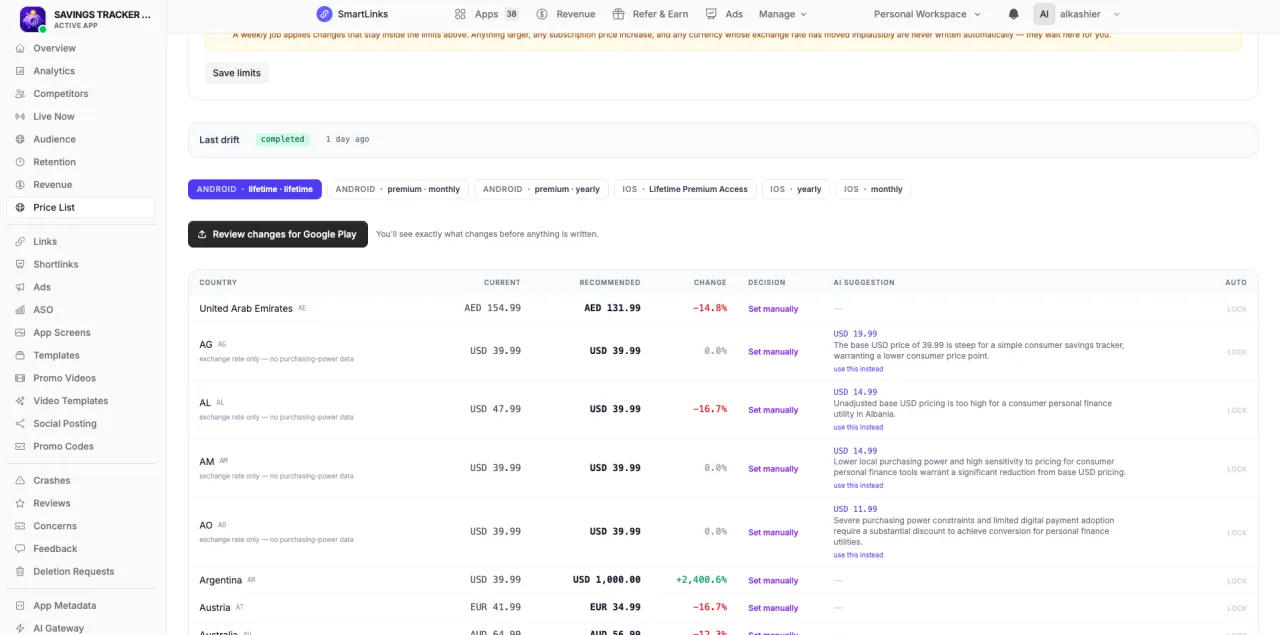
Review store proceeds
Compare available Apple and Google reporting in the Store Proceeds view, with coverage and source context.
Review imported App Store and Google Play sales reports with source, date and currency context. Make store proceeds easier to inspect without mixing them with SDK purchase events.
Open Store Reports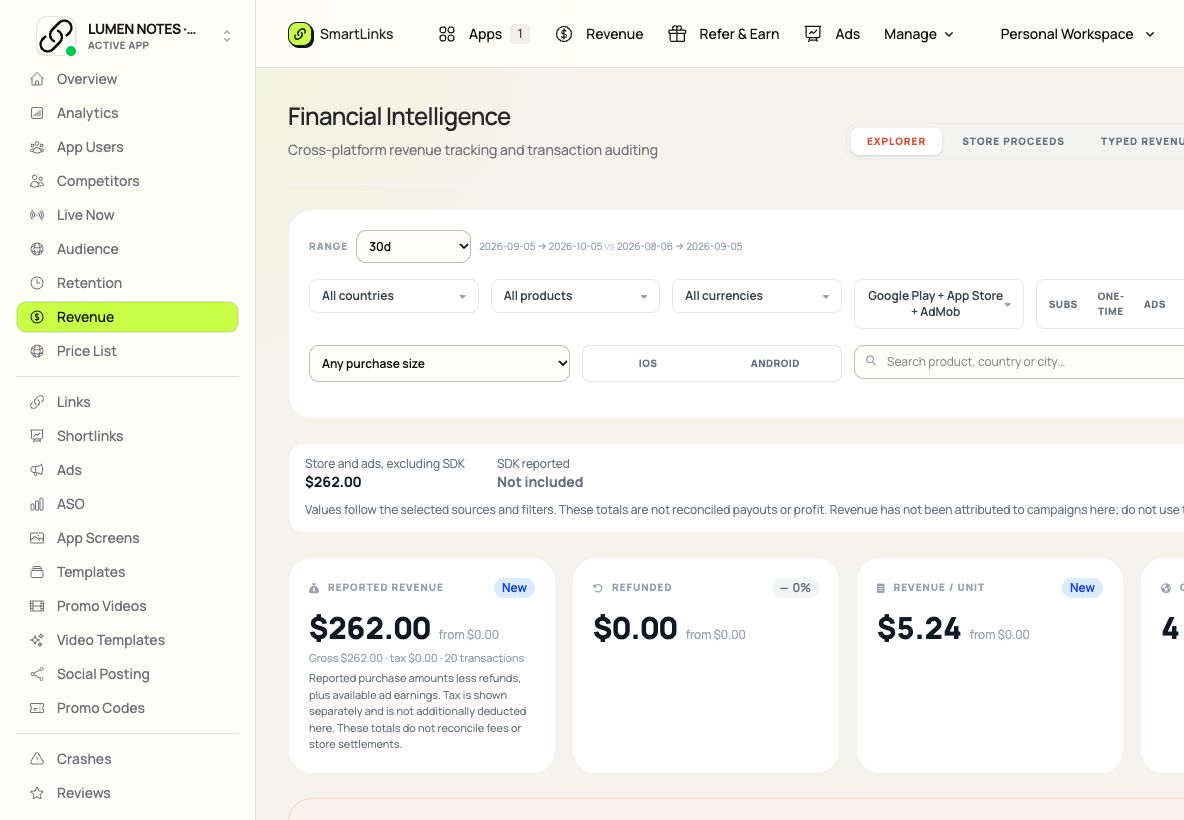
Keep the details that matter to this job in one place. Pick up where you left off, with your app and team already connected.
Explore the product guideCompare available Apple and Google reporting in the Store Proceeds view, with coverage and source context.
Move from totals to reported products, countries and transactions to understand where a change came from.
Switch the reporting period and store filter to compare like-for-like data.
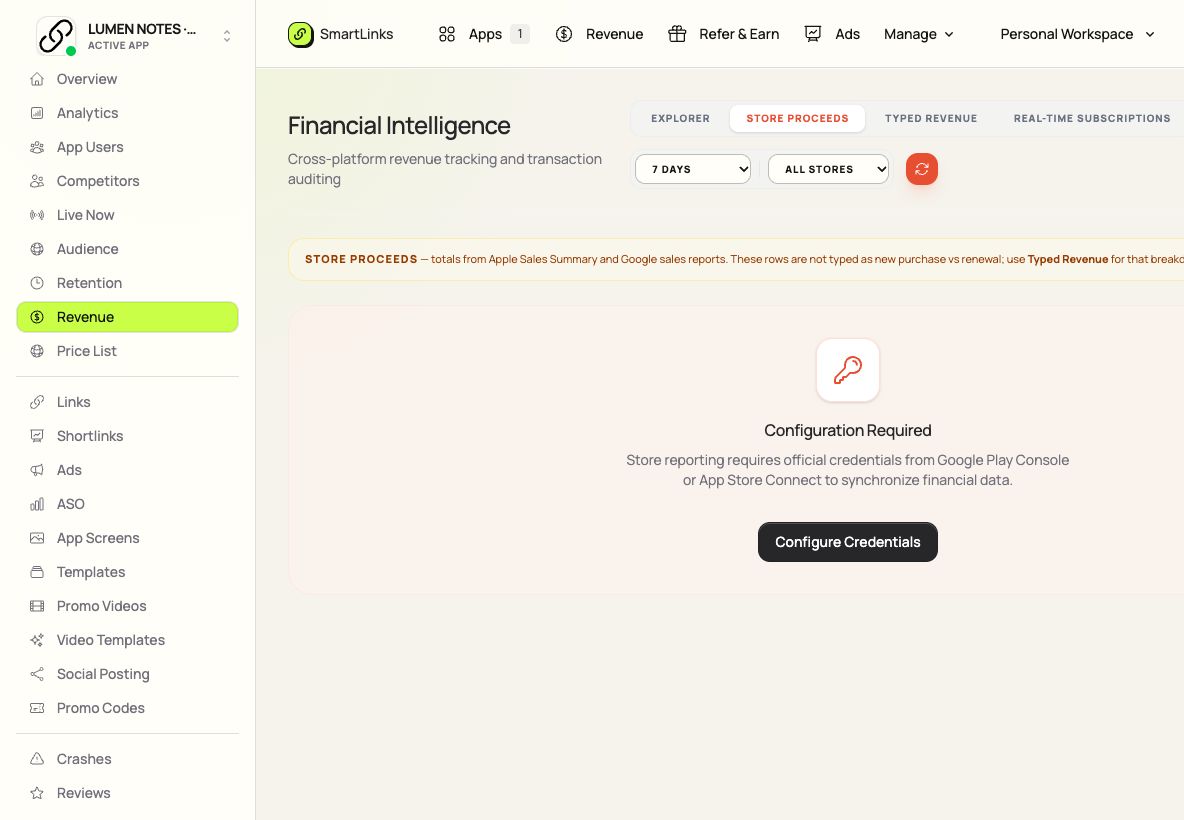
Captured from the real SmartLinks interface using fictional demo data.
Focus on Store Reports.
Keep the whole app connected.
Store credentials and report access are required. Imported proceeds can arrive later than SDK events and should not be treated as campaign profit.
Connect the relevant store reporting source.
Import reports and check date coverage.
Review proceeds and inspect the supporting rows.
Review imported store proceeds, source coverage and financial report details.
Store credentials and report access are required. Imported proceeds can arrive later than SDK events and should not be treated as campaign profit.
No. Use your existing SmartLinks account. Your apps, ownership and team access carry across the product collection.
Store Reports uses your shared SmartLinks subscription. Choosing a different suite plan changes that shared subscription; it does not add a separate product subscription. Compare monthly, annual and lifetime plans.
Yes, with the plan access and permissions assigned by the workspace owner. Each teammate keeps their own account.
The Store Reports guide explains the workflow and provider setup. Other products remain available from the same account.
One place to start. Room to keep building.